 AJCloud Docs
How Do I Set Up Continuous Recording?
Learn how to set up continuous recording on your camera using SD card storage or cloud storage
SD Card Storage
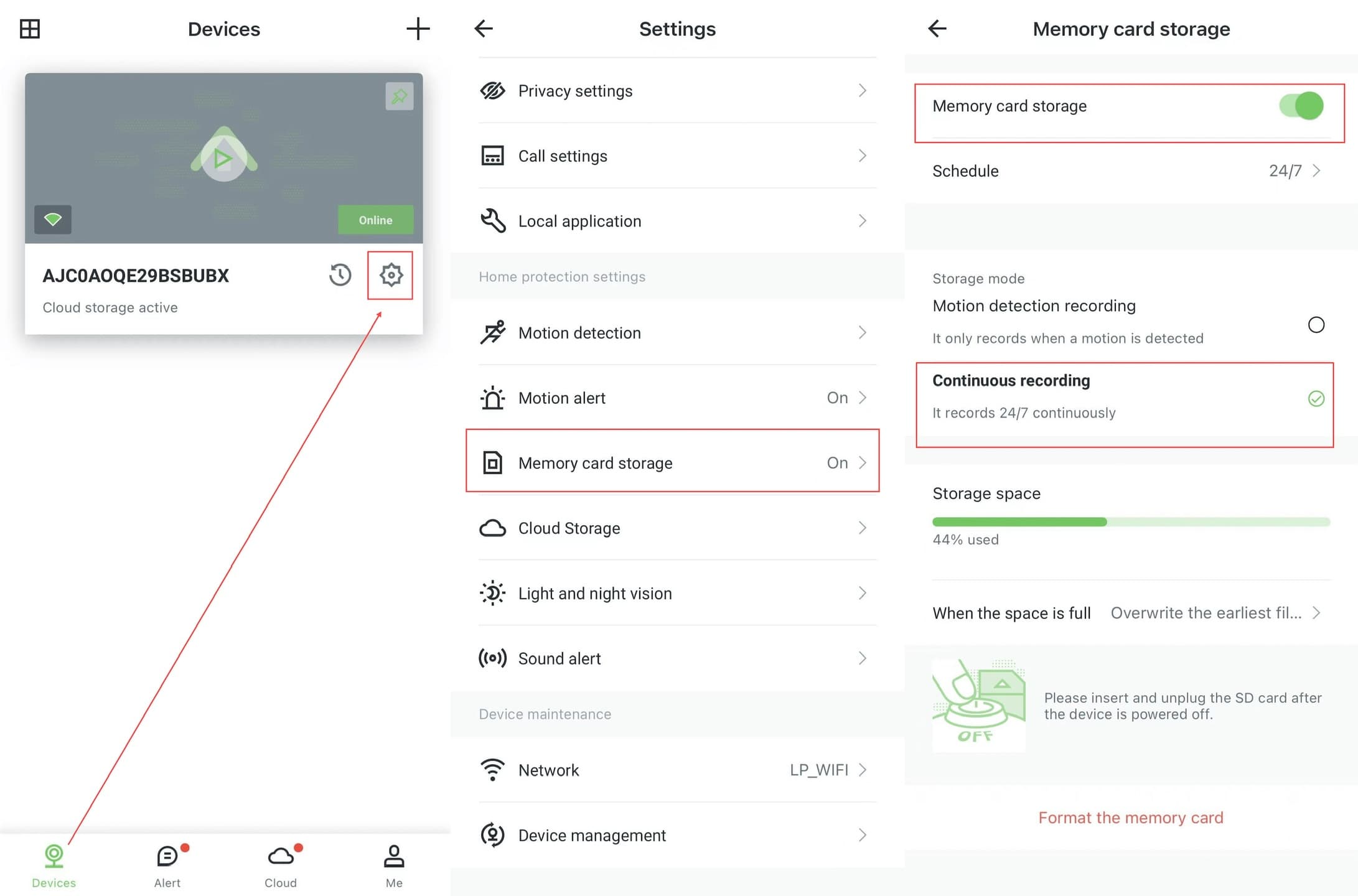
If you have installed an SD card for the camera, you need to select "Memory card storage" under the camera settings, and select continuous recording mode. The working time of memory card storage is 24/7 by default. You can set the recording time period of the camera in "Schedule", and it supports setting up to two working time strategies.
If you have a battery camera, you can only select motion detection recording.
Cloud Storage
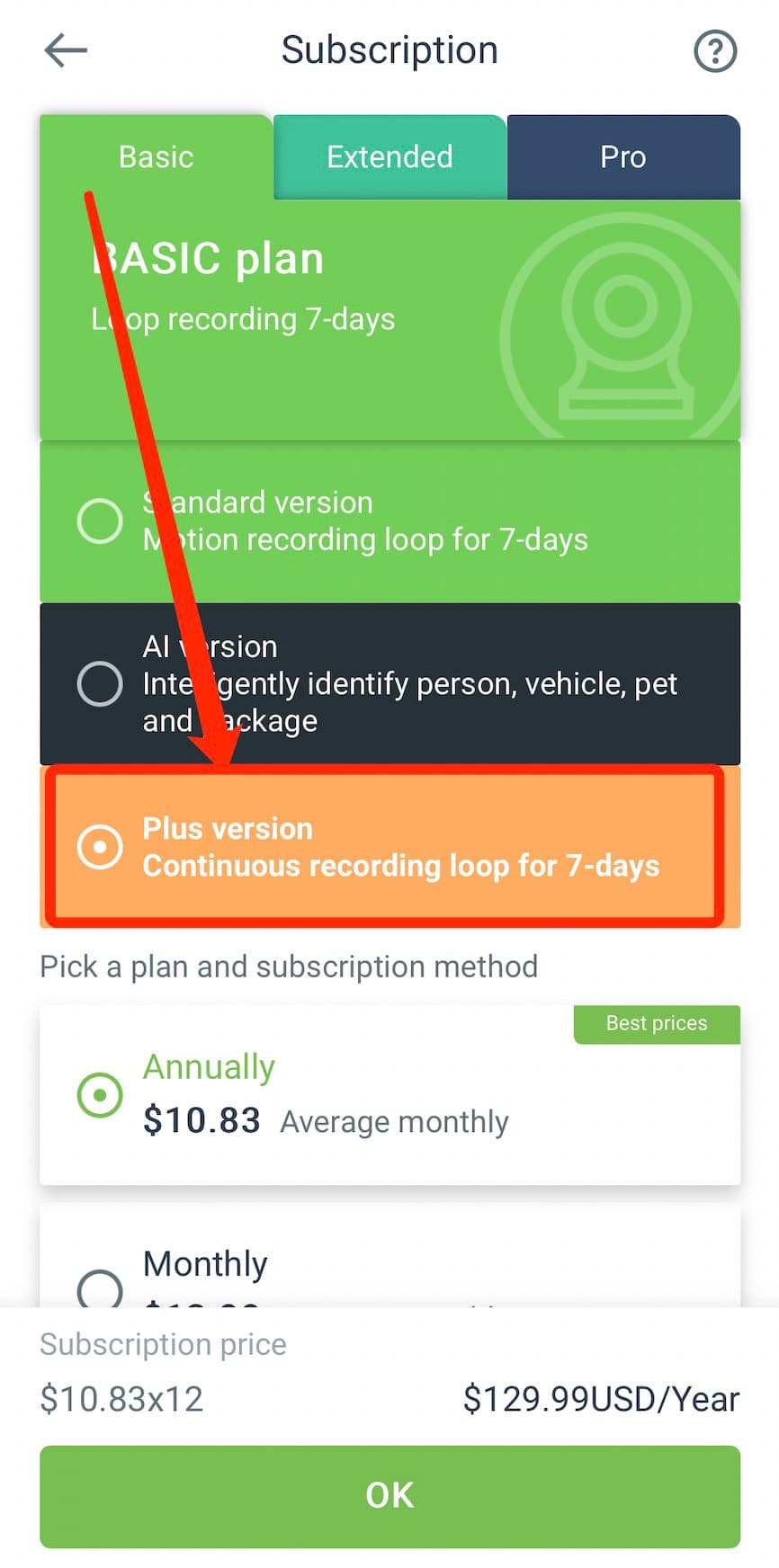
If you want continuous recording storage via the cloud, you can choose the Basic Plus plan. After subscribing, it will record continuously for 7 days for the cameras activated under the plan. You can set the recording time period of the camera in "Schedule", and it supports up to two working time strategies. If you don't set it, it will record automatically 24 hours a day by default.
If you have a battery camera, it will still work in motion detection recording mode to save battery power.
Using Cloud Storage and SD Card Together
If you have both cloud storage and an SD card, you can set them up separately according to the above two methods. Cloud storage and SD card storage can work at the same time, and you can switch to view the storage records of SD card and cloud storage when you replay the video.
How to Adjust the SD Card Recording Configuration of the Camera?
Learn how to configure SD card recording settings including storage mode and schedule on your camera through the AJCloud app
How to Download the Recording File?
Learn how to download recorded videos from the camera replay or SD card storage