 AJCloud Docs
What Do I Do If the Camera Does Not Detect Movement as It Should?
Troubleshooting steps when your camera fails to detect motion or does not detect movement properly
1) Make Sure You Have the Latest Version of the APP
In the APP, select "Me" -> click "About", your current APP version will be listed under the logo. Click on "Update" to go to your mobile device's APP store and update the APP.
2) Make Sure Your Camera Firmware Is Up to Date
Find the camera you wish to update in the APP, click on Settings (gear button) -> Camera Info -> Click on the firmware version and it will automatically check and upgrade.
For detailed firmware update instructions, see How Do I Update My Camera Firmware Version?.
3) Make Sure the Camera Is Set to Record Properly
Click "APP -> Device", enter the corresponding camera Settings (gear button) -> select Mobile Alerts and keep enable "on". By default, motion alerts are enabled 24/7. If you set a time policy in "Schedule", mobile alerts will be generated during the set time period.
All alarm records are pushed by default without marking. However, cameras added to the AI plan (paid subscription required) or cameras with AI detection capabilities will push alarm records with tags by default.
4) Adjustment of Motion Detection
Sensitivity Adjustment
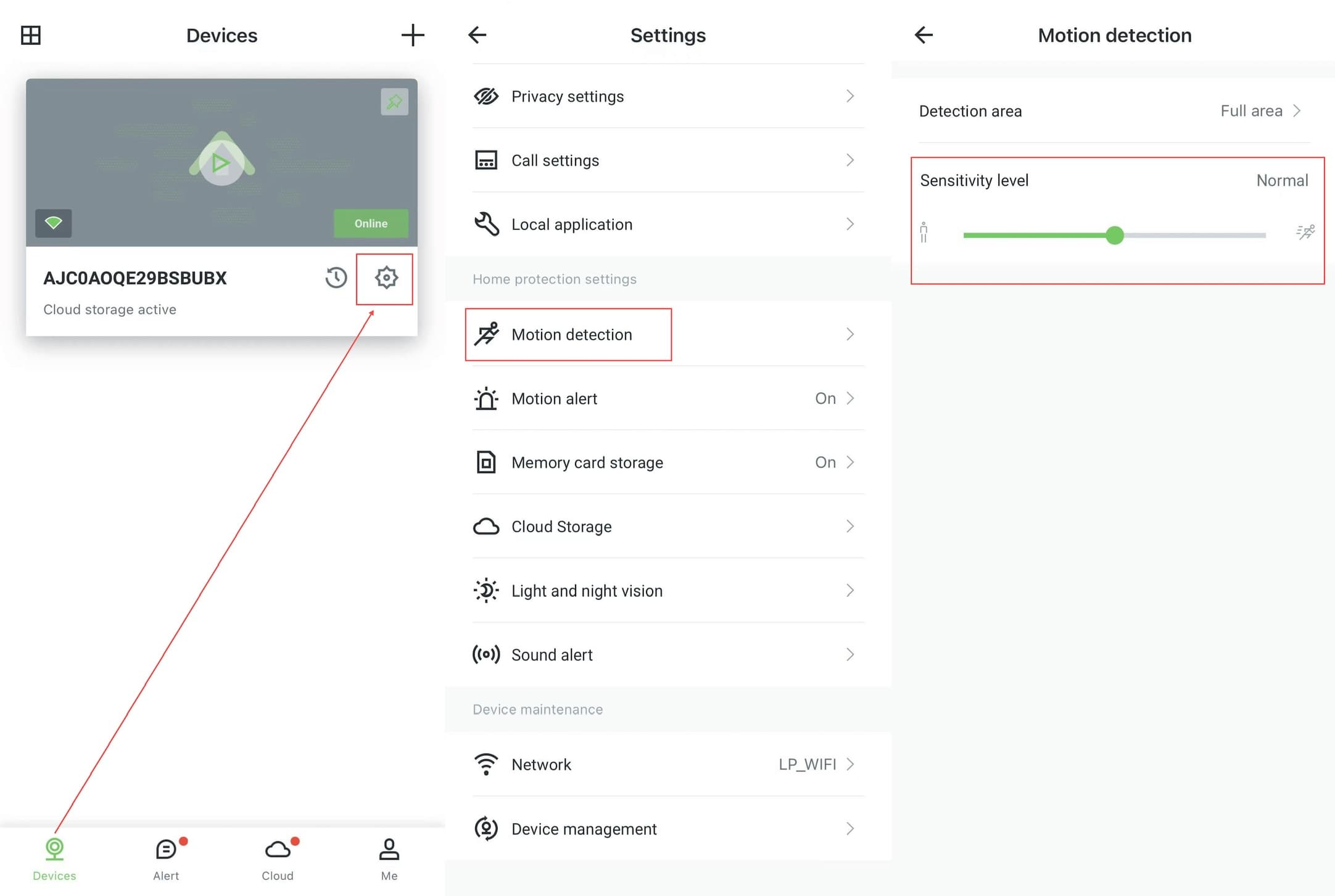
Open the APP, select your camera, click the gear button to enter settings, select "Motion detection" and set the sensitivity level.
Detection Area Adjustment
Ensure that the area you are detecting is within the detectable range. "Full Area" means that all movement in the screen is within the detectable range.