 AJCloud Docs
How Do I Share My Camera with Family and Friends?
Learn how to share your camera with family and friends using the AJCloud app
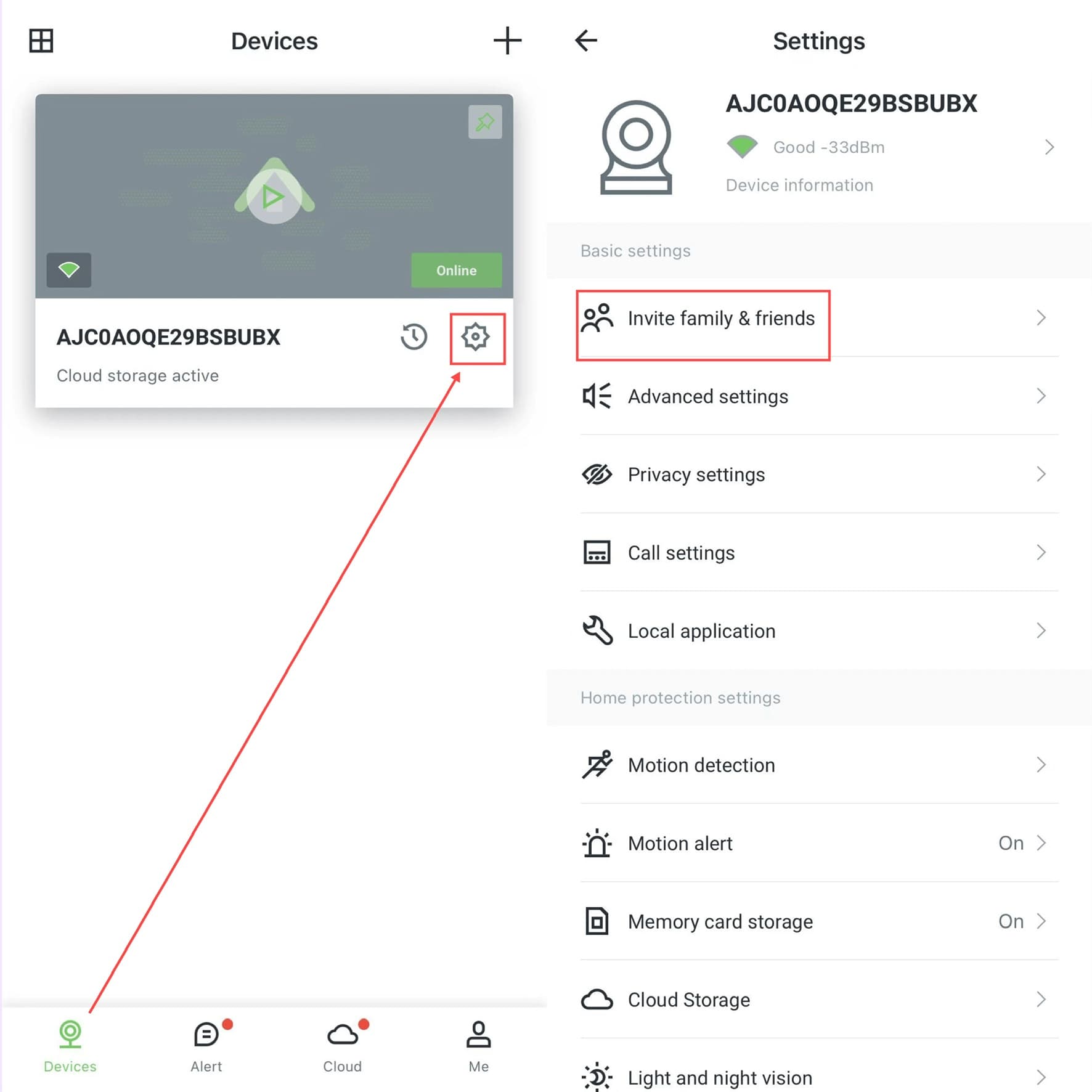
Step 1: Open Camera Settings
Open the APP, select your camera in the "Devices" and click on Settings (gear button).
Step 2: Invite Family & Friends
Click on the "Invite family & friends" option.
Step 3: Add a Shared User and Set Permissions
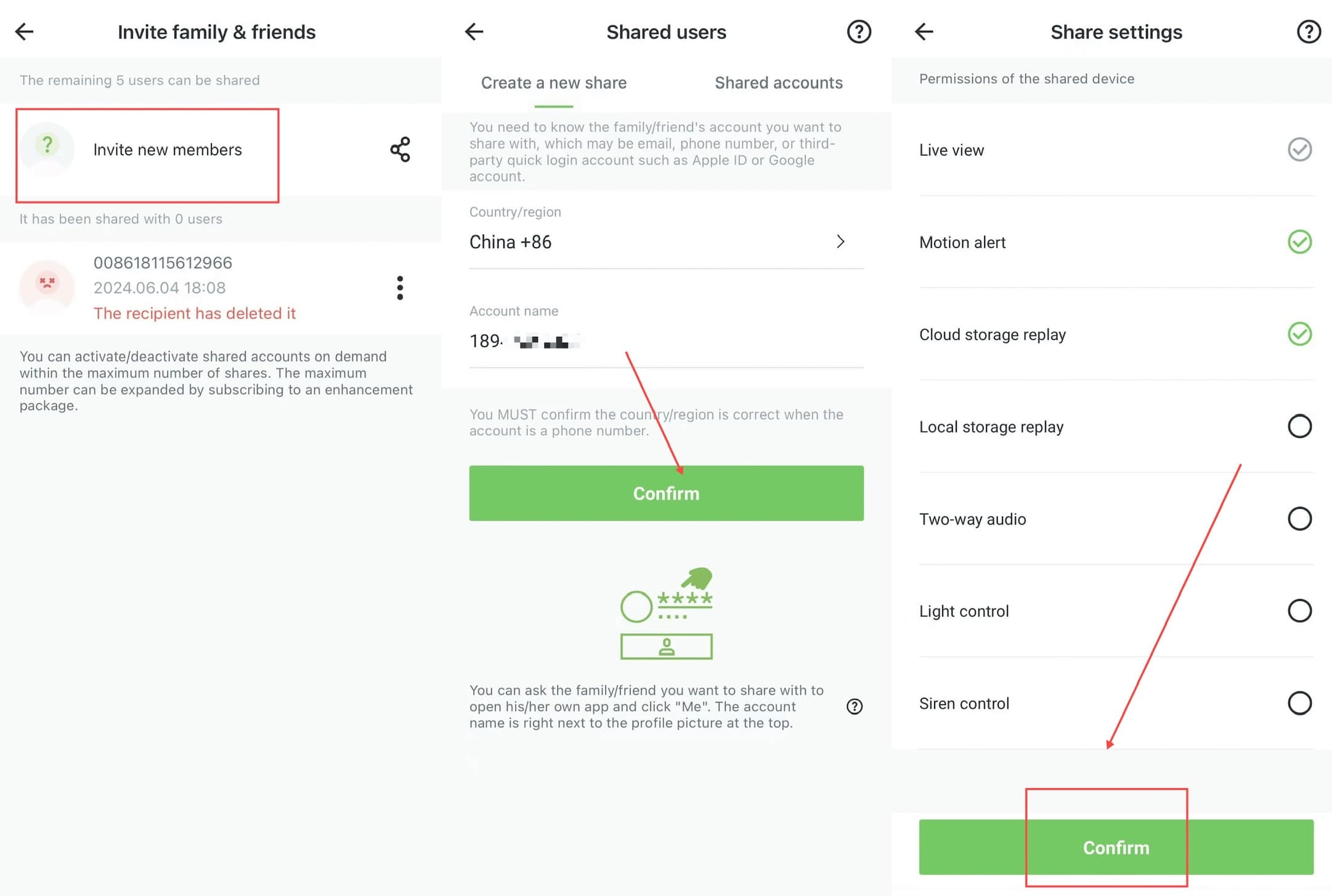
- Tap "Invite new members".
- Enter the account of the family member or friend you want to share with (email, phone number, or third-party quick login account such as Apple ID or Google account).
- Set the sharing permissions for the shared device, including:
- Live view
- Motion alert
- Cloud storage replay
- Local storage replay
- Two-way audio
- Light control
- Siren control
- Tap "Confirm" to send the invitation, and wait for the other person to accept it.
Shared users need to download the same APP and register an AJCloud APP account. They need to accept the invitation on the APP (open the APP, you will see a prompt waiting to accept the invitation, then click accept) to view the camera. Shared users will not be able to set up the camera nor share it again.
For more details on managing shared cameras and members, see How to Manage Shared Cameras and Shared Members.